The experiences, Test cases, views, and opinions etc expressed in this website are my own and does not reflect the views or opinions of my employer. This site is independent of and does not represent Oracle Corporation in any way. Oracle does not officially sponsor, approve, or endorse this site or its content.Product and company names mentioned in this website may be the trademarks of their respective owners.
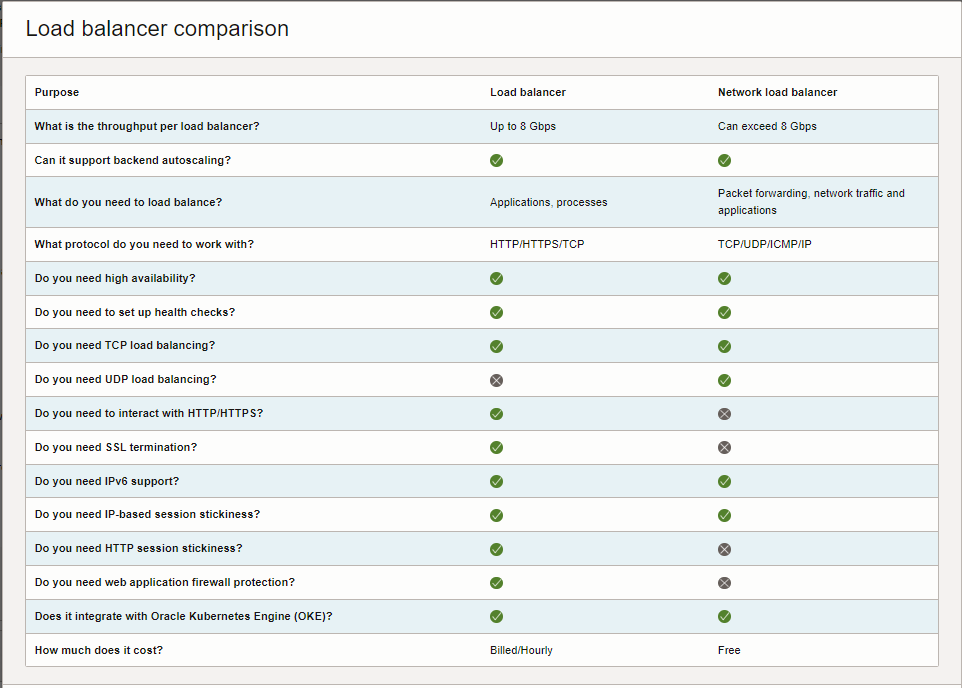
Oracle has Two Load Balancer Services available. , In case if you are not sure which one is best for you and what are the differences, you can refer the following chart provided by Oracle. https://cloud.oracle.com/load-balancers#
Load balancer
The load balancer service provides a reverse proxy solution that hides the IP of the client from backend application server and vice versa. It is capable of performing advanced layer 7 (HTTP/HTTPS), layer 4 (TCP) load balancing and SSL offloading.
Best for: Websites, mobile apps, SSL termination, and advanced HTTP handling.
Network load balancer
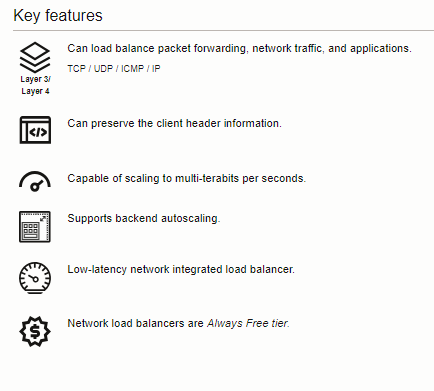
The network load balancer service provides a pass-through (non-proxy solution) that is capable of preserving the client header (source and destination IP). It is built for speed, optimized for long running connections, high throughput and low latency.
Best for: Scaling network virtual appliances such as firewalls, real-time streaming, long running connections, Voice over IP (VoIP), Internet of Things (IoT), and trading platforms.
When signing up, it is mandatory to configure and enable Multi-Factor Authentication (MFA). Once configured, during the login process, you will be required to obtain approval either through the Oracle Authenticator App or by obtaining a passcode.
To customise the MFA Configuration, access the Identity & Security section and select the desired domain. This action will direct you to the Domain Dashboard, where you can choose the appropriate security settings and explore additional options for Multi-Factor Authentication.
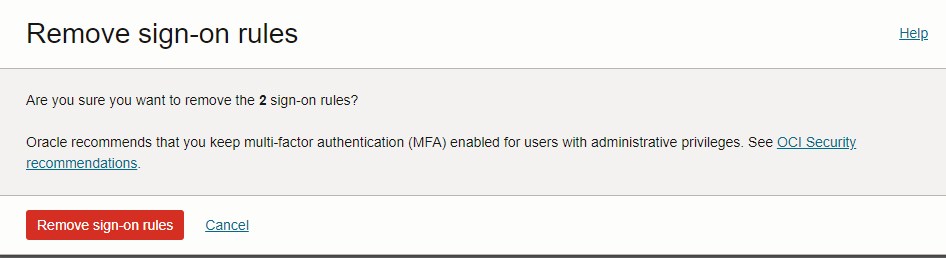
You can change the Default Configuration under Identity–>Domains–>Default domain–>Security –>MFA, when you try to update the changes , you may get the error as below “You cannot disable these factors as they are being referenced in Rules used in Sign-On Policies. Remove them from the Rules before disabling the factors.”
In order to prevent the occurrence of the aforementioned error, it is advisable to disable the default sign-in policy for both users and administrators as indicated in the error message.
One can Install Apache and Nginx using YUM Or DNF in the Selected Unix flavor whereas by default it is a non-secure sub-domain when you access.
Lets encrypt offers free SSL which can be configured to get the SSL for your domain irrespective of Private Or Public Domains. In case of Private Domains , you just need to add a text Entry to Pass the Validations.
For this I am using Oracle Cloud Instance(Always Free).
As its the Initial Login after Instance provision , run the yum update and Install Apache and/or Nginx as per your choice.
Run Yum Update and make sure everything updated without any issues.
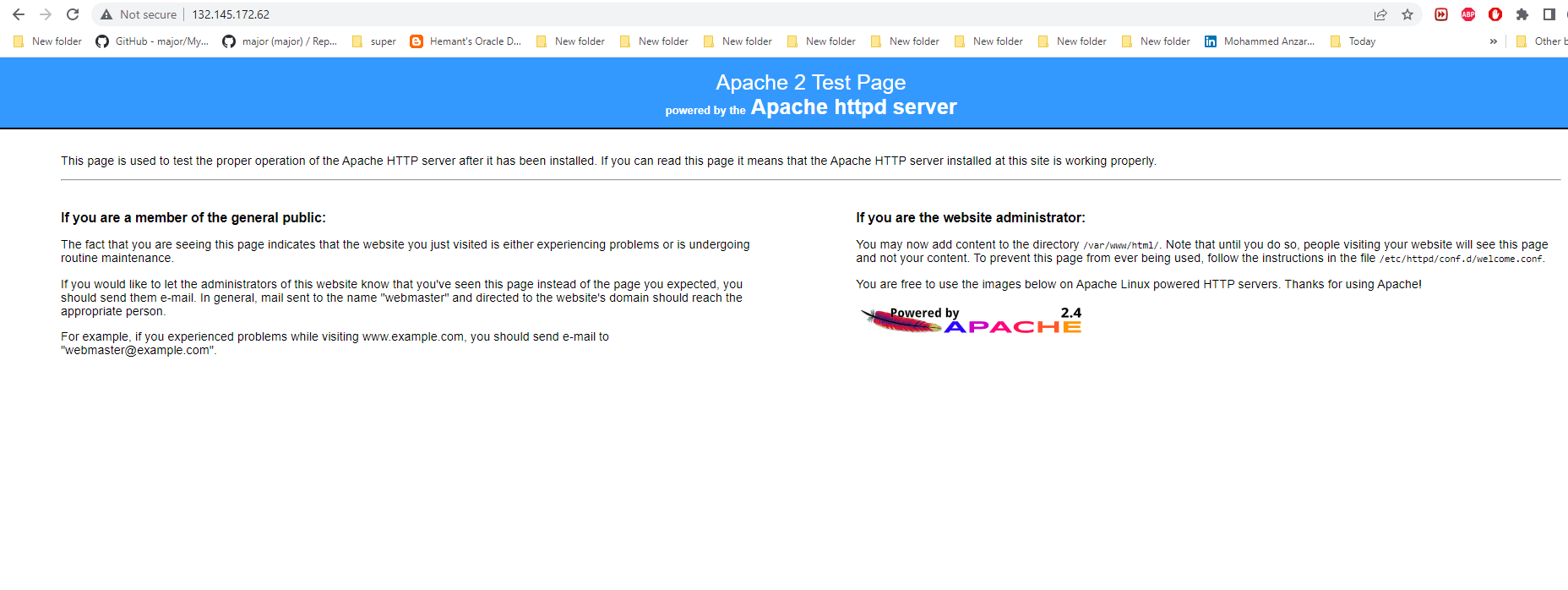
Install Apache-httpd using yum repo.
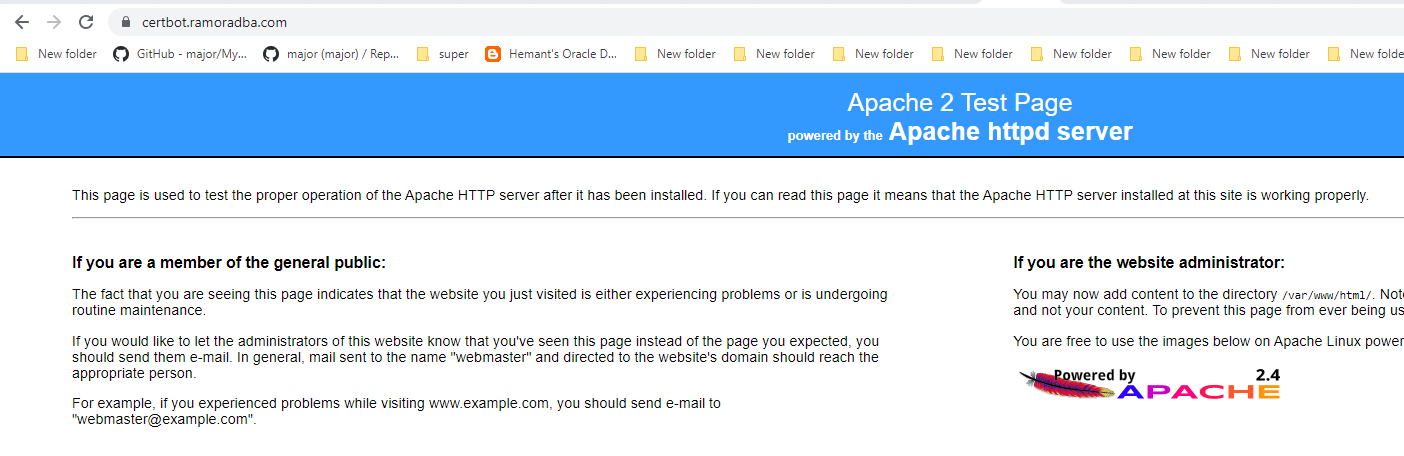
Try Access the IP/Hostname to see the Installed Apache Default Page.
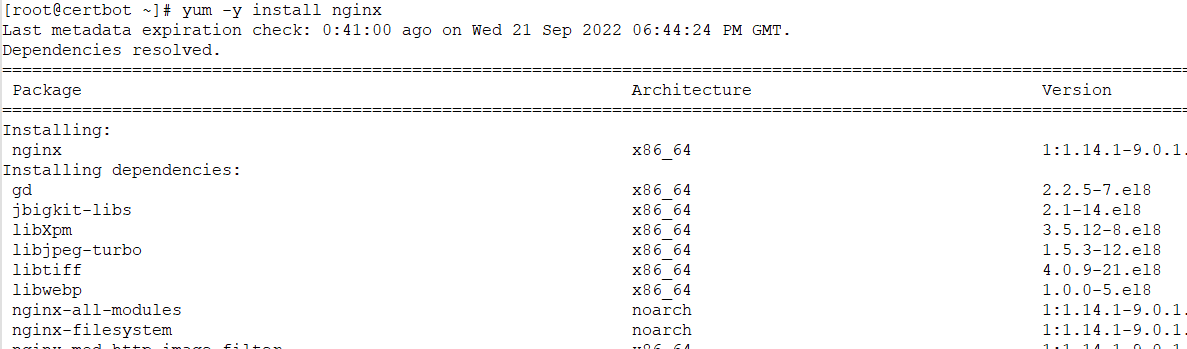
Install Nginx using Yum
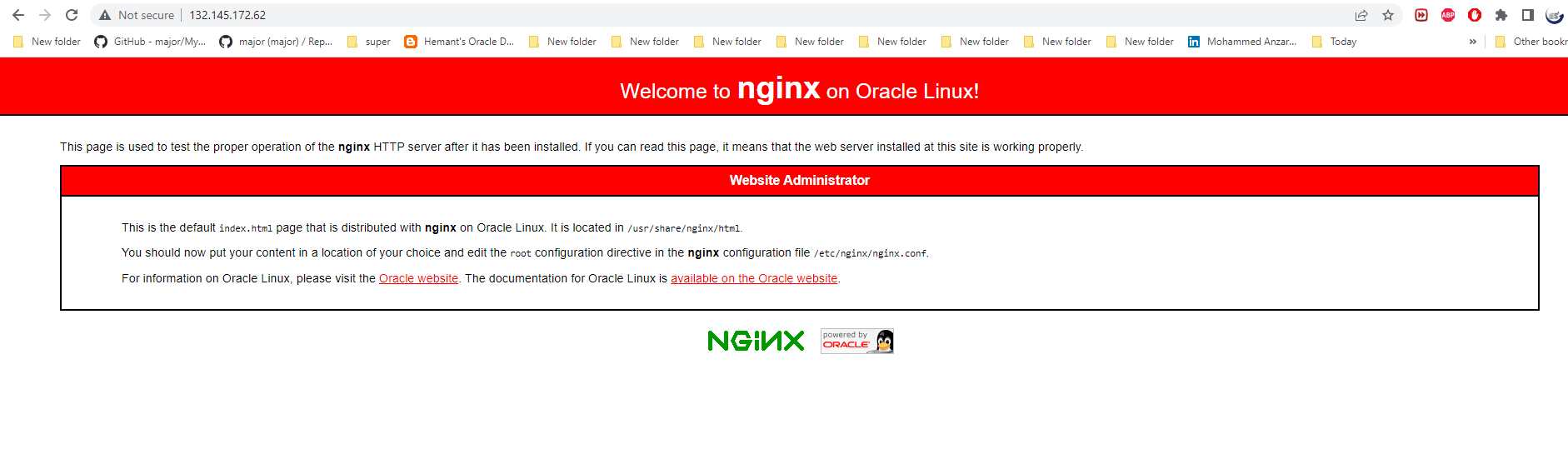
Try to Access Nginx from the Browser
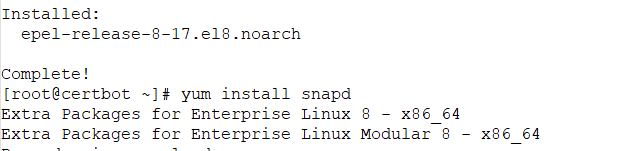
Enable EPEL Repo to Configure Snap and Certbot
Enable the Socket and run the below to Install certbot ,
systemctl enable --now snapd.socket
ln -s /var/lib/snapd/snap /snap
snap install certbot --classic
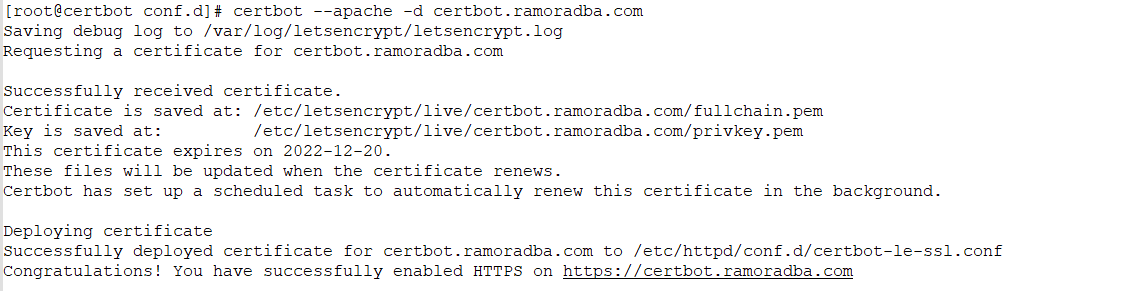
Restart your session to get the Certbot ,You can Configure SSL for Nginx Or Apache as below, Add an Entry in you domain controller for your IP matching with the Host Name Configured.
Adding Domain Entry for the HostName
You can Either Configure SSL and Install Or Choose the certonly Option to Get the Certificates only, you can configure your SSL.conf as per your webserver configuration Also In case , your System is not internet facing, You can choose the Preferred Challenges as either http or DNS You can review the Supported Challenged here https://letsencrypt.org/docs/challenge-types/











 Not Just Databases